
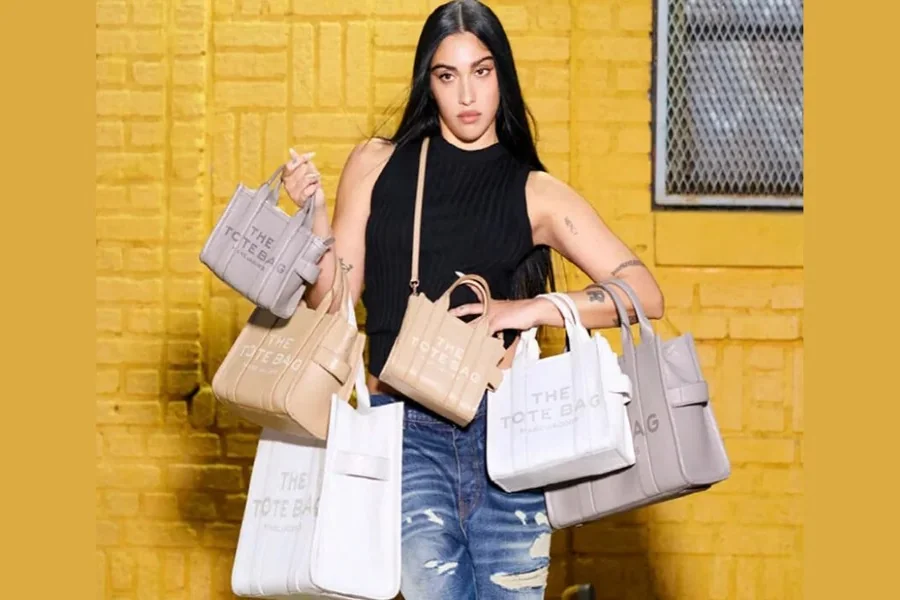
A step-by-step tutorial for influencers, creators, and small teams who need polished tote designs without formal graphic design training.
Introduction
Custom tote bags remain one of the most practical merchandise options for influencers. They are lightweight, reusable, event-friendly, and easy to integrate into product drops, community meetups, or brand collaborations. The difficulty rarely lies in the idea—it lies in translating that idea into a clean, print-ready design without advanced software skills.
Custom Tote Bags Design Tool platforms streamline this process. Instead of working inside complex desktop programs, creators can rely on browser-based layout systems with preset dimensions, typography controls, and export settings optimized for print. The focus shifts from technical setup to message clarity and visual hierarchy.
One accessible starting point is online tote bag design from Adobe Express, which provides tote-sized templates and simplified editing controls for non-designers. The workflow below explains how to move from concept to production-ready file efficiently, while avoiding common layout and print mistakes.
Step-by-Step How-To Guide for Using Custom Tote Bags Design Tool
Step 1: Start with a print-ready template
Goal
Use a canvas already sized for tote bag printing to avoid scaling errors.
How to do it
-
Open the tote bag template library in Adobe Express
-
Select a layout designed specifically for print
-
Confirm canvas dimensions before editing
-
Duplicate the template to preserve the original
-
Rename the project clearly for version control
What to watch for
-
Social media–sized templates instead of print layouts
-
Wrong orientation (portrait vs. landscape)
-
Overly decorative templates that distract from your brand
-
Default placeholder text left behind
Tool notes
If coordinating with a printer that has specific measurement requirements, confirm size adjustments before adding content. For organizing production timelines and task tracking, project management platforms such as Asana can help keep launch deadlines aligned with design progress.
Step 2: Define one clear message
Goal
Make the tote readable at a glance.
How to do it
-
Draft a short phrase (ideally 3–6 words)
-
Identify the primary element (brand name, slogan, event name)
-
Place the main text in the center or upper third
-
Add secondary text only if necessary
-
Use font size contrast to establish hierarchy
What to watch for
-
Equal emphasis on all lines
-
Excessively long phrases
-
Decorative fonts that reduce readability
-
Messages that depend on small print
Tool notes
If you want to test how a phrase performs with your audience before printing, lightweight surveys via Typeform can help gather quick feedback on slogan clarity.
Step 3: Add graphics thoughtfully
Goal
Enhance the design without overcrowding it.
How to do it
-
Insert a single illustration or icon if needed
-
Upload only high-resolution artwork
-
Maintain consistent margins
-
Align elements using layout guides
-
Keep visual style consistent
What to watch for
-
Pixelated images
-
Graphics placed too close to trim edges
-
Mixed illustration styles
-
Excessive decorative elements
Tool notes
If sourcing licensed illustrations, stock providers like Shutterstock can supply high-resolution vector artwork suitable for fabric printing.
Step 4: Choose colors that print well
Goal
Select colors that remain legible and stable on fabric.
How to do it
-
Limit the palette to 1–3 strong colors
-
Account for the tote’s base color
-
Ensure high contrast between text and background
-
Preview mockups before exporting
-
Avoid subtle gradients unless confirmed printable
What to watch for
-
Pale ink on natural canvas
-
Neon tones that shift during print
-
Thin colored outlines
-
Complex layered effects
Tool notes
If coordinating with a print supplier, shipping and fulfillment platforms such as ShipStation can help manage bulk distribution once production is complete.
Step 5: Review spacing and layout balance
Goal
Ensure the tote looks intentional and centered.
How to do it
-
Zoom out and evaluate overall balance
-
Increase white space if crowded
-
Check vertical and horizontal alignment
-
Keep text inside safe margins
-
Compare multiple versions before finalizing
What to watch for
-
Text drifting off-center
-
Uneven spacing between lines
-
Overlapping elements
-
Tiny secondary details
Tool notes
If collaborating with a remote assistant or editor, file-sharing platforms such as Dropbox can simplify version management and proof review.
Step 6: Export in the correct format
Goal
Produce a print-ready file that requires no adjustment by the printer.
How to do it
-
Confirm final dimensions match printer specs
-
Set resolution to print quality (typically 300 DPI)
-
Remove placeholder layers
-
Export as high-quality PDF or PNG
-
Save both editable and final versions
What to watch for
-
Exporting in web resolution
-
Wrong color profile
-
Missing fonts
-
Transparent backgrounds when unintended
Tool notes
Before placing a large order, consult logistics services such as Easyship to confirm delivery timelines align with launch announcements.
Step 7: Align launch timing with distribution
Goal
Coordinate release with audience engagement windows.
How to do it
-
Confirm production lead time
-
Plan announcement schedule
-
Estimate quantities realistically
-
Prepare fulfillment tracking
-
Monitor early demand patterns
What to watch for
-
Announcing before samples arrive
-
Overestimating demand
-
No inventory tracking system
-
Misaligned campaign timing
Tool notes
Launch coordination benefits from scheduling platforms such as Buffer to time promotional posts around product availability.
Common Workflow Variations
Minimal text-only tote
Use bold typography and generous spacing. Works best for established brands.
Illustration-led tote
Feature a central image with subtle brand placement.
Event giveaway tote
Add date or location beneath main slogan, keeping hierarchy clear.
Limited-edition drop
Include small edition details without overpowering the main message.
Checklists
Before You Start Checklist
-
Confirm print dimensions
-
Prepare high-resolution logo files
-
Finalize slogan
-
Verify image licensing
-
Choose tote base color
-
Review printer file requirements
-
Estimate timeline and quantity
-
Confirm shipping plan
Pre-Export / Pre-Order Checklist
-
Canvas matches printer specs
-
Spelling verified
-
Fonts embedded (if required)
-
Safe margins respected
-
Contrast checked
-
Exported at print resolution
-
Mockup preview reviewed
-
Editable version saved
Common Issues and Fixes
Blurry graphics
Replace low-resolution images with vector or 300 DPI files.
Text too close to edges
Increase margins before exporting.
Color shift in print
Request a sample and slightly darken light shades if needed.
Overcrowded layout
Remove secondary elements and increase spacing.
Wrong export format
Re-export in the exact file type requested by the printer.
How To Use Custom Tote Bags Design Tool: FAQs
Is a template always necessary?
For beginners, templates reduce sizing errors and layout imbalance.
Can influencer totes be simple?
Yes. Clear typography often outperforms complex graphics.
What file format is safest for printing?
High-quality PDF is typically preferred, though printers may specify otherwise.
How many colors are ideal?
Limiting colors simplifies printing and improves clarity.
Is browser-based software sufficient?
For text and simple illustration designs, yes. More complex artwork may require external design preparation before import.
